Choosing Models
The three speech-recognition engines Tiune offers, what they trade off, and how to switch between them.
Tiune turns your voice into text using something called a speech-recognition engine — the part of the app that actually "listens" and figures out what you said. Different engines trade off speed, size and accuracy, a bit like choosing between a quick sketch and a careful painting. Tiune lets you pick which one fits how you work.
There are three, all of which run entirely on your own machine, and you can switch between them at any time.
Tiune Instant
The engine built into Tiune from the moment you install it — there's nothing to download, and it's ready the instant you open the app. It's fast and works great for everyday dictation: notes, messages, quick emails. English only. About 78 MB, already included.
As of 0.2.0 this is NVIDIA's Parakeet 110m, replacing the Moonshine engine that shipped
before it. The swap was made on measurement rather than preference: over 80 fixed test
clips, Parakeet roughly halves the word error rate (9.0% versus 15.8%) and is slightly
faster, for 2 MB more. The deciding number was a different one — Moonshine returned an
entirely empty transcript on 5 of those 80 clips, which is dictation silently producing
nothing. Parakeet returned none. The full comparison is in scripts/en-eval/README.md.
Tiune Turbo
A larger, more accurate engine you can download from Settings if you want the best accuracy Tiune can offer for English. It takes a little longer per sentence than Instant but hears more subtlety — useful when every word needs to land exactly right. English only. About 380 MB to download.
Tiune Multilingual
Understands 99 languages, entirely on your machine. Download it from Settings if you dictate in anything other than English. About 550 MB.
One thing to know about how it works: it commits to one language at a time. It picks a language per stretch of audio and can't follow a speaker who switches mid-sentence — no local engine of any size can, and that's a property of the architecture rather than of this particular download. If you routinely mix languages inside a single sentence, that's what Pro's cloud transcription is for; see Plans.
You can name the language you're speaking in Settings → Speech, or leave it on auto-detect. Naming it is meaningfully more accurate when you know it in advance.
Everything here runs on your machine
All three engines process your voice entirely on your own computer, on every plan, and nothing is sent anywhere for transcription. Cloud transcription is a separate, opt-in Pro capability — see Privacy for exactly what leaves and when.
Downloading and switching
- Open Settings → Speech → Dictation model.
- Find the engine you want and click Download. You'll see a progress percentage.
- Once it's ready, click Use to switch to it.
 Click → progress percentage → the row flips to Use.
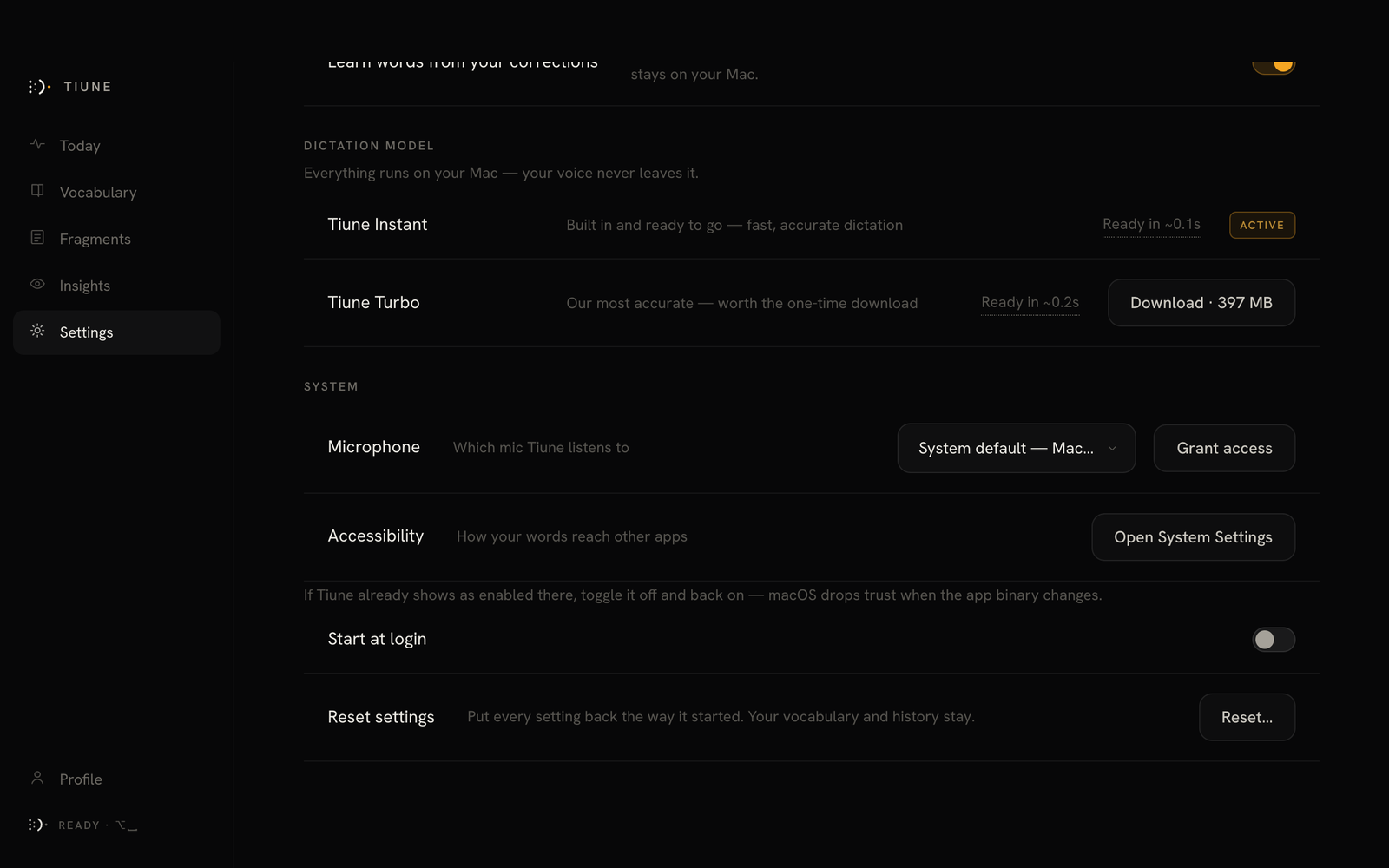 Tiune Instant active, with the other engines ready to download.
Switching engines takes effect right away — you don't need to restart Tiune or wait for your next dictation. If you ever want to free up disk space, you can delete a downloaded engine you're not using; Tiune falls back to Tiune Instant so dictation never breaks.
A quick honesty check before you download
Tiune measures how fast each engine actually runs on your specific machine — not a generic number from a spec sheet. If you pick an engine that looks like it'll be noticeably slower on your hardware, Tiune politely double-checks with you first, showing roughly how long you'd be waiting per sentence. You can still go ahead if you'd rather — it's just there so you know what to expect.