Voice Dictation
How dictation actually works day to day — the bar, live feedback, speaking naturally, and what happens when things don't go perfectly.
Dictation is the core of Tiune: hold a key, speak, let go, and your words appear wherever your cursor is. This page covers what actually happens in between, so it stops feeling like magic and starts feeling predictable.
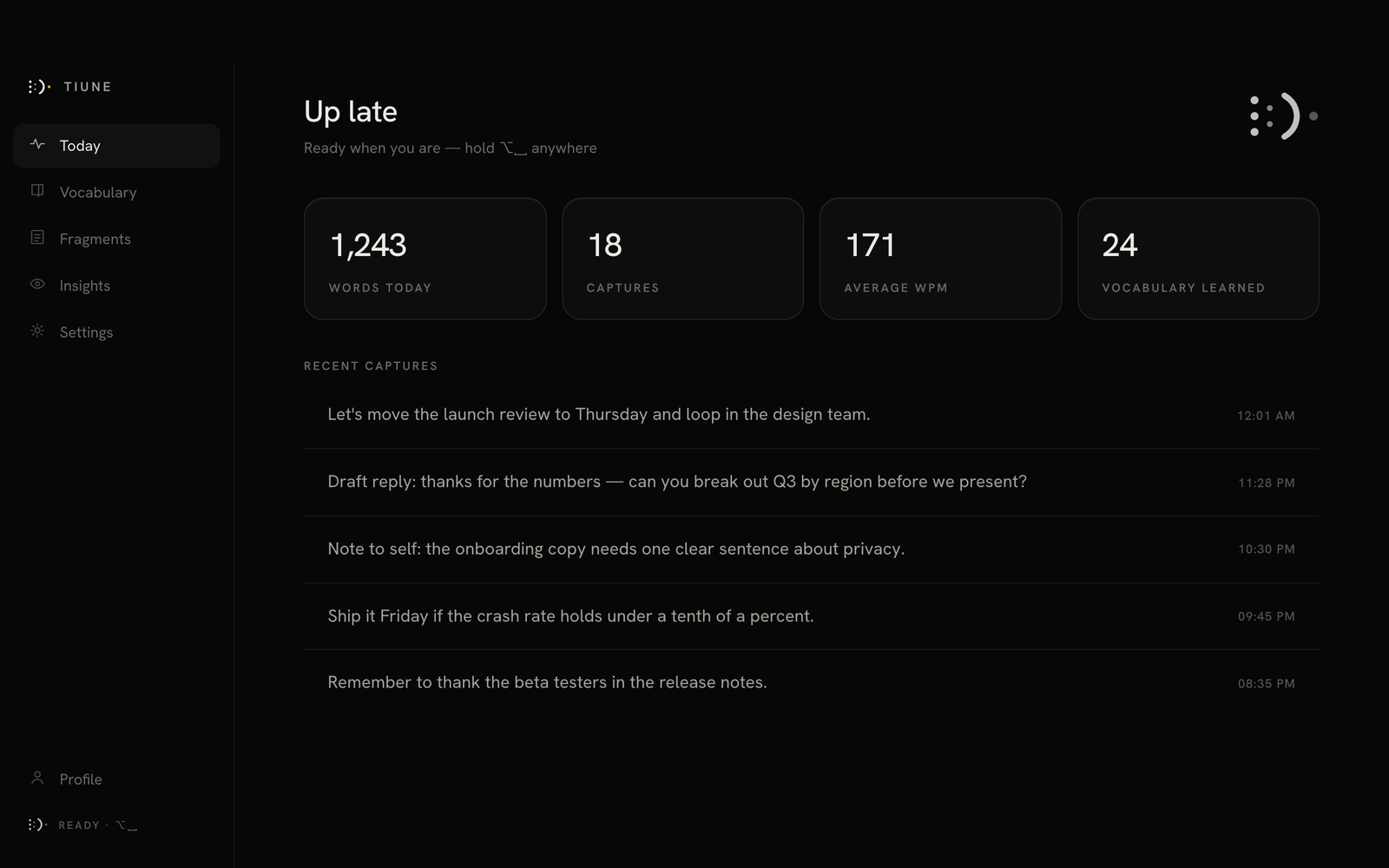 The main window after a few dictations — every capture is kept here too, not just typed
into whatever app you were using.
The main window after a few dictations — every capture is kept here too, not just typed
into whatever app you were using.
The basics
Hold your shortcut (⌥Space on macOS, right Ctrl on Windows, by default) anywhere on your computer, say what you want to write, and release. A moment later, cleaned-up, punctuated text lands right at your cursor.
Prefer not to hold a key down? In Settings → General, you can switch to Toggle to talk: press once to start, press again to stop.
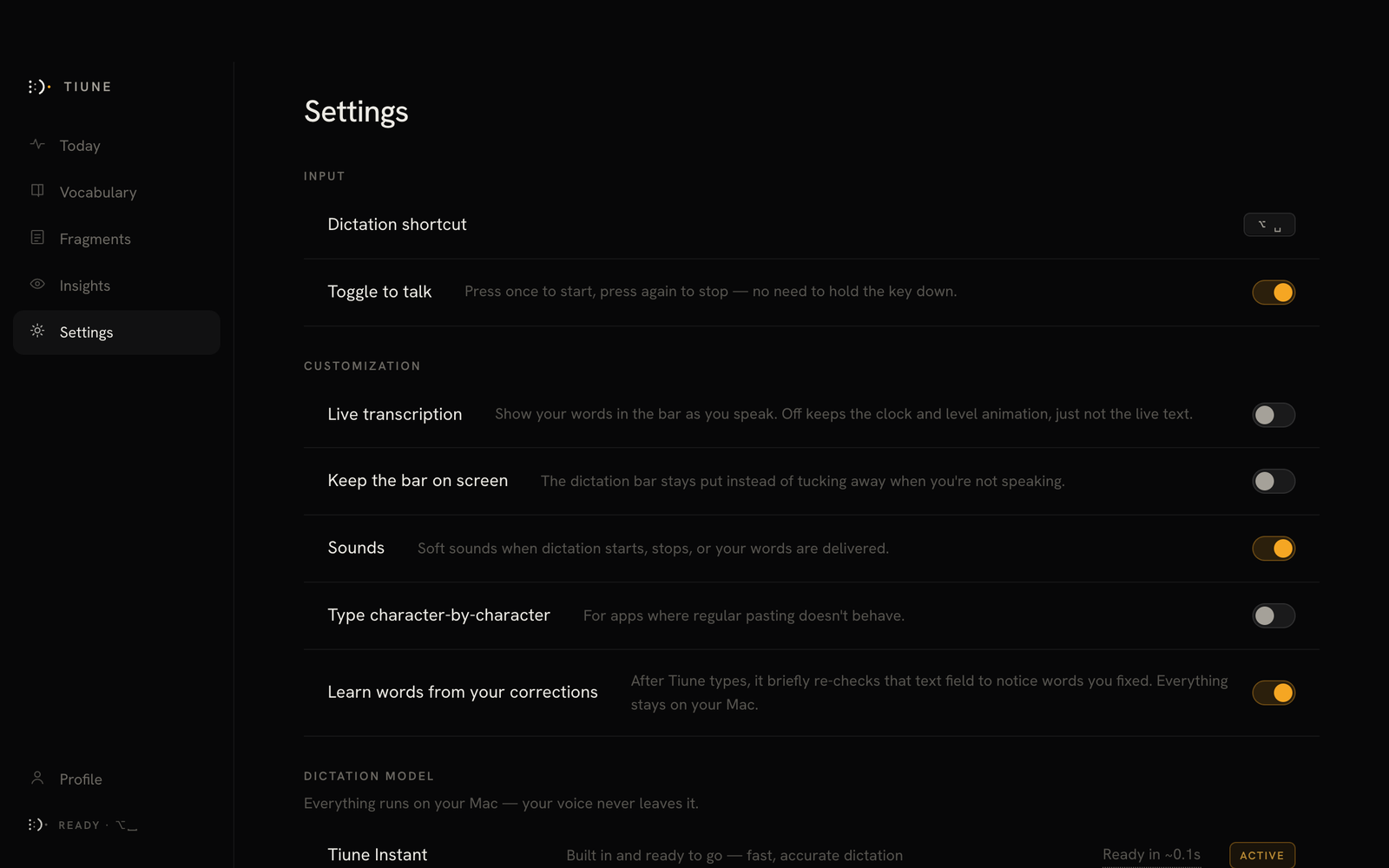 The "Toggle to talk" row in Settings → General.
The floating bar
While Tiune is running, a small pill-shaped bar sits at the top centre of your screen. On a MacBook with a notch, it grows sideways out of the notch, at the height of the menu bar. With more than one display, it stays on the built-in screen (or your main display, if the laptop is closed). It's how Tiune shows you what's happening, moment to moment:
- Resting — sitting quietly, mostly out of the way
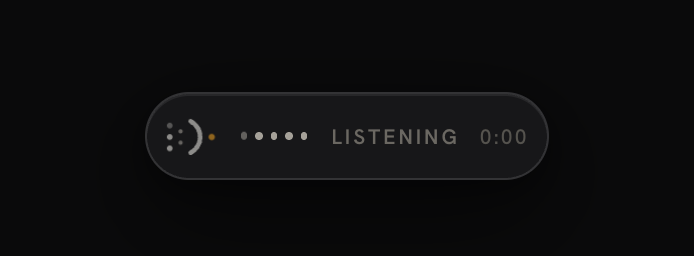
- Listening — you're holding the key and Tiune is capturing your voice
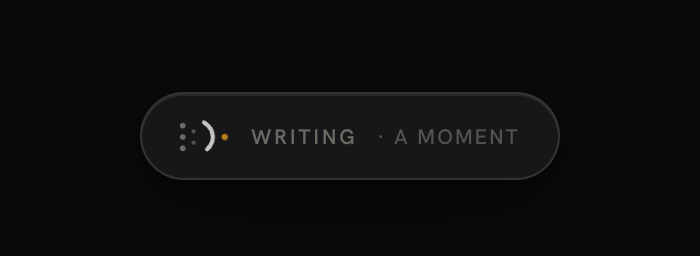
- Writing — you've let go, and Tiune is finishing up the text
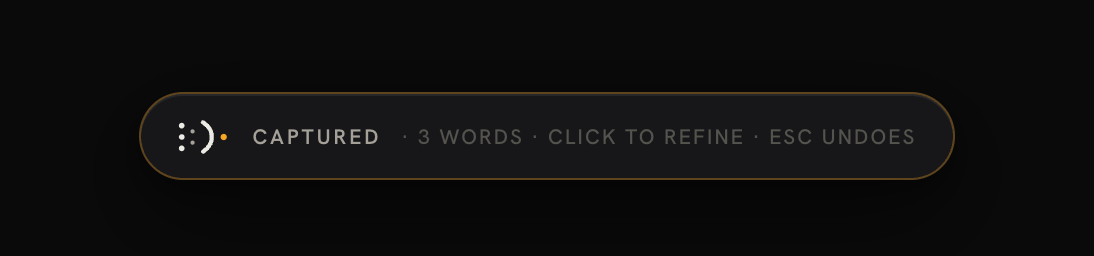
- Captured — done! Click the bar any time here to review what it wrote, or edit it directly. On Plus and Pro, this is also when the one-press transformations are live
If you'd like to actually see your words appear in the bar as you speak them, turn on Live transcription in Settings — it's off by default, but the bar always shows a listening animation either way.
 One real dictation, start to finish, in the bar.
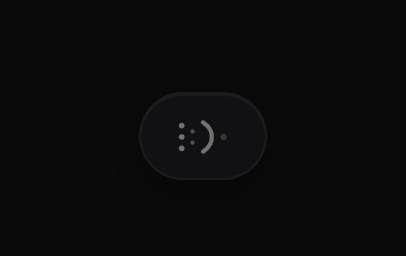
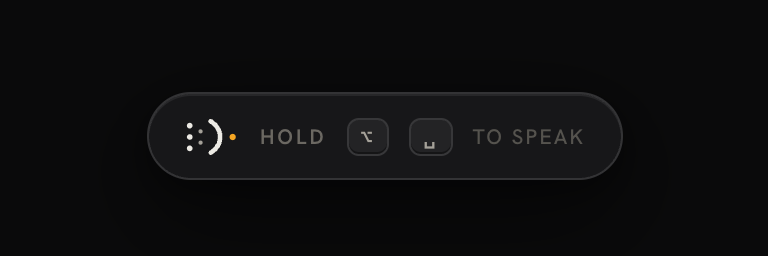
The bar through its individual states:
| Idle | Hover | Listening |
|---|---|---|
 |  |  |
| Speaking | Processing | Finished |
|---|---|---|
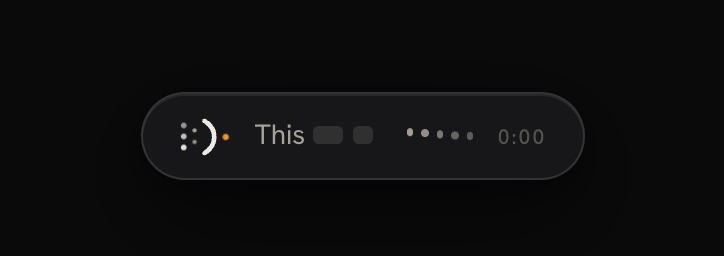 |  |  |
 Live transcription on — words appear in the bar as you speak.
 Live transcription off — just the listening animation, no live text.
Speaking naturally
You don't need to talk like a robot. Tiune is built to handle real speech:
- Filler words like "um" and "uh" are automatically trimmed out.
- If you restart a sentence mid-thought ("I want to say — I want to say that..."), Tiune notices the repeat and keeps just one.
- Natural pauses become sentence breaks; Tiune is smart enough not to add a period in the middle of you reading out a phone number or a string of digits.
You can also just say the punctuation you want, and Tiune will write the actual symbol: try saying "comma," "period," "question mark," "new line," or "new paragraph" partway through a sentence.
When Tiune can't type for you
Tiune is always upfront when something didn't go as planned — it never pretends something worked when it didn't:
-
No Accessibility access yet? Your words are copied to the clipboard instead, and the bar tells you so — just paste with ⌘V.
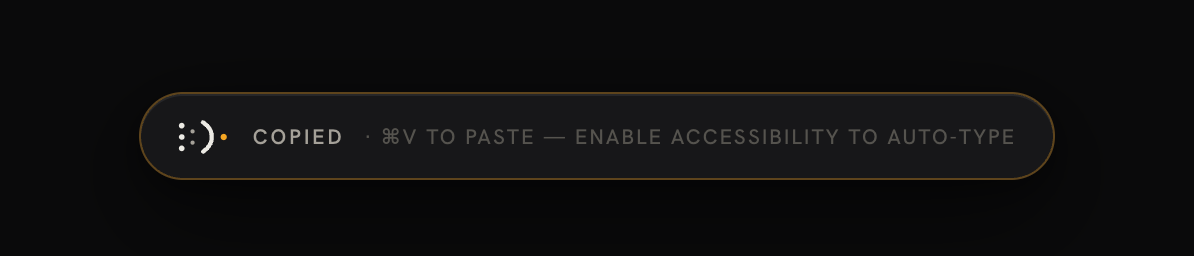 "Copied · ⌘V to paste — enable Accessibility to auto-type."
 -
Typing into a password field? Same thing — Tiune copies instead of typing, since macOS itself blocks apps from typing into secure fields, for your safety.
-
Something else goes wrong with typing? Tiune never just throws your words away. They're saved automatically to the Fragments tab in the main Tiune window, tagged "Rescued," so you can grab them later.
Fragments: a place for half-formed thoughts
Sometimes you want to think out loud without sending words into any particular app — a note to yourself, a stray idea, something you'll want in twenty minutes but not now.
Open the Fragments tab and click Speak a fragment to dictate into a running list instead of into whatever app happens to be focused. Nothing has to be in front of you and nothing has to be ready to receive the words.
A few things worth knowing:
- You can keep adding to one. A fragment isn't sealed when you stop talking — speak more into one that already exists and it grows, so a thought you come back to twice stays in one piece.
- End it with your ordinary dictation key. There's no separate control to learn; the key you already use to finish a capture finishes a fragment too.
- It's also the safety net. Any words that couldn't be typed automatically land here, as mentioned above — so nothing you say is ever truly lost, even when the destination refuses them.
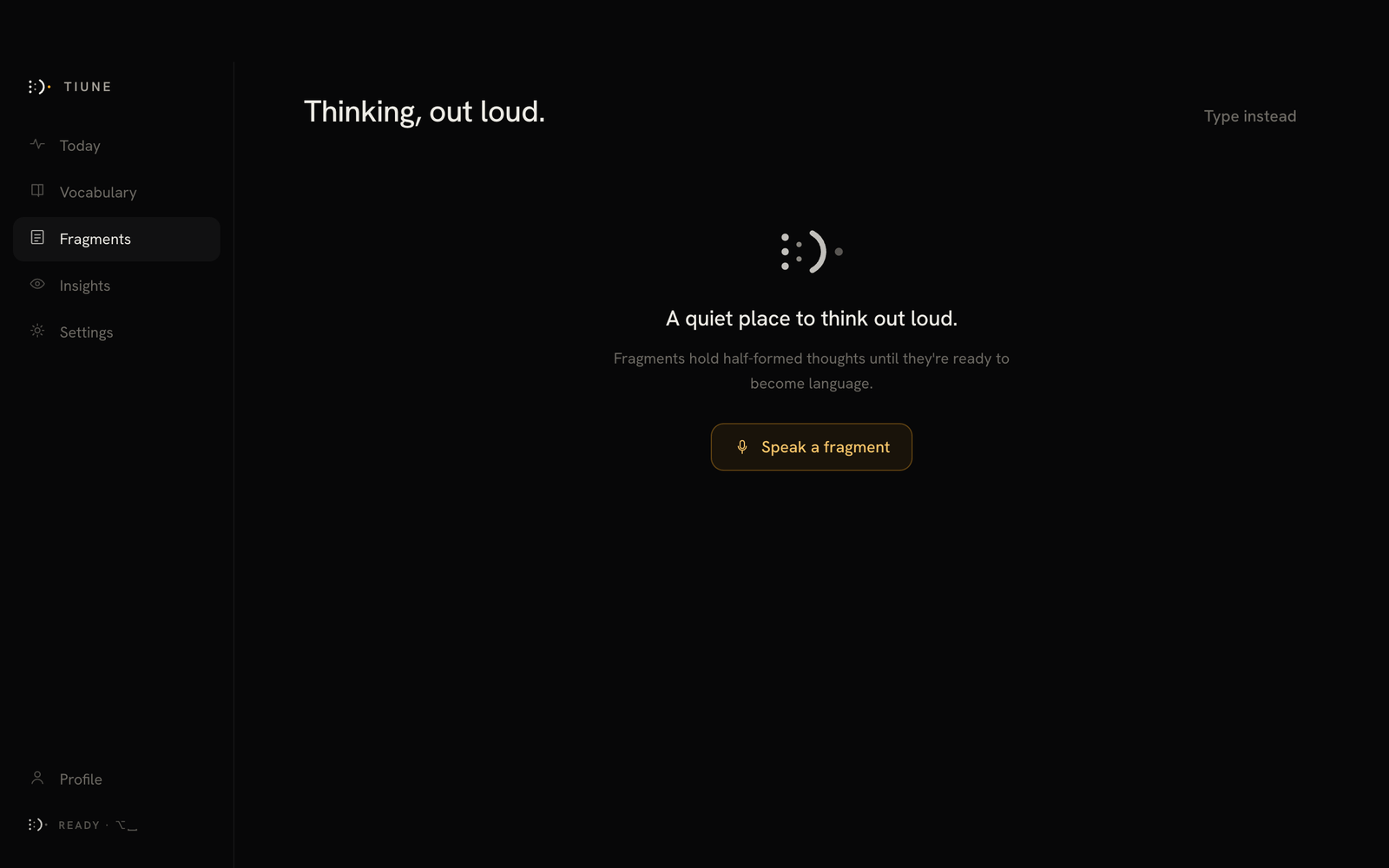 The Fragments tab before you've spoken anything into it.
Changing your mind mid-capture
Press Esc at any point to discard what you were dictating — nothing gets typed, nothing gets saved.
Reviewing and fixing a capture
Click the bar right after it says "Captured" to open a review window with your text. You can edit it directly if something came out wrong — and doing so actually helps Tiune learn. See Vocabulary Learning for how that works.
Older dictations work the same way. Double-click any past dictation in Today to open it in the review window, read the whole thing, and edit it. Your edit is saved to your history. Editing an old one changes Tiune's copy only — it doesn't reach back into the app the words went to. (Fragments can't be opened this way yet, and editing history isn't on Android.)
Lists that carry on
On Plus and Pro, formatting carries on between dictations. Start a list in one breath and the next dictation into the same box continues it, rather than starting a new paragraph. How Tiune Writes explains how.
If paste doesn't behave in a particular app
A small number of apps handle pasted text oddly. If you notice that in one specific app, turn on Type character-by-character in Settings → General — it tells Tiune to type your words out one keystroke at a time instead of pasting them in.