Settings
A tour of every pane in Tiune's Settings.
Settings is organized into five panes, in the order you're likely to reach for them: General, Speech, Writing, Privacy, and Account. Here's what each one holds.
General
Where the shortcut and the microphone live — what a new user needs first, and what an existing one comes back for.
Shortcut — the key that starts dictation. The default is ⌥Space on macOS and right Ctrl, held on its own, on Windows. To change it, click the current shortcut and press whatever you'd like instead. If another app already owns that combination, Tiune tells you and keeps your existing shortcut working rather than leaving you without one. See Keyboard Shortcuts.
Microphone — pick which microphone Tiune listens to, or leave it on your system default. If a microphone you'd chosen gets unplugged, Tiune quietly falls back to the default until it's back.
While you speak
- Live transcription — shows your words in the floating bar as you speak them, instead of just an animation. Off by default.
- Keep the bar on screen — whether the floating bar stays visible at rest.
- Sounds — soft sounds when dictation starts, stops, or your words are delivered.
- Turn down other audio while dictating — ducks system audio so music doesn't bleed into the microphone, and restores it afterwards.
Behaviour
- Type character-by-character — for the rare app where regular pasting doesn't behave; see Voice Dictation.
- Learn words from your corrections — the setting behind Vocabulary Learning. On by default.
Permissions & system — whether Tiune currently has permission to type for you and to hear you, with a shortcut to fix either if not (see Permissions), plus Start at login.
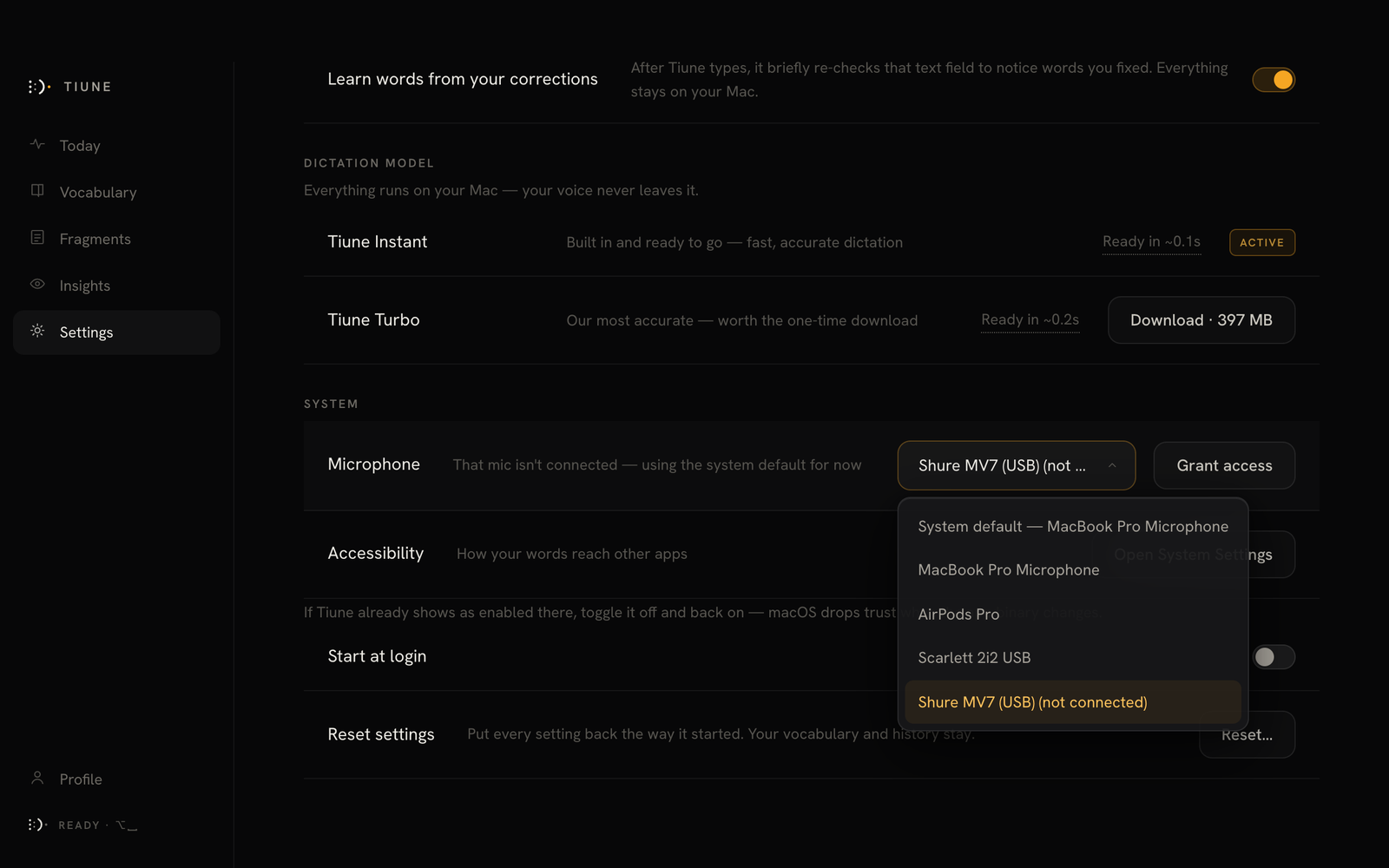 The microphone picker, including a previously-selected device that's now unplugged.
Speech
The half of Tiune that listens.
Dictation model — download, switch, or remove speech-recognition engines. Covered in full in Choosing Models.
Transcription — whether transcription runs on your machine or in the cloud, and which language you're speaking. Where it runs has three choices: Offline, Online, offline backup (English stays on your machine; other languages, and a switch into one mid-sentence, go to the cloud) and Online only. Cloud transcription is a Pro capability; on every other plan, and in Offline, transcription happens entirely on your own machine. See Languages & Scripts.
Writing
The half of Tiune that types.
AI cleanup — the pass that turns spoken words into finished text. Included from Plus upward. Its main control is Rewriting, which has three settings:
- Write what I meant — the default. Superseded thinking is dropped, so "meet at six, no, maybe five, let's say five" types "let's meet at five."
- Keep my voice — disfluencies and punctuation only. Your wording and your length survive even where you rambled.
- Off — no cleanup model at all. Punctuation and filler removal still happen on your machine.
Whatever the setting, the rewrite can only ever reach its result by deleting from your own words — so a maybe stays a maybe, and nothing is put in your mouth. Explained in full in How Tiune Writes.
Write it as — what language and script the finished text comes out in: the language you spoke, the same words in Latin letters, or English. This is the Roman Urdu path (transliterate, never translate). It needs the AI cleanup pass to do properly, so the control appears only on plans and engines that can serve it. See Languages & Scripts.
How it reads — how Tiune writes for each destination. It classifies by the shape of the fields around your cursor rather than just the app name, and you can override any app by hand with a plain-English instruction. Only a single one-word category ever reaches the cleanup model — nothing that names the app. The request does also carry a short run of the text already in the field, so a list carries on as a list; see How Tiune Writes and Privacy.
Sign emails as — a name added under the closing when you dictate an email and don't say your own. Empty by default, and empty means nothing is signed.
Undo the rewrite — the binding that swaps the rewritten text back for your exact words. Live for five seconds after each dictation, then released back to other apps.
Privacy
On your machine
- Save transcripts on this device — keeps a record of each dictation so Today can show your history, word count and speed. Turn it off and Tiune types your words and forgets them: nothing is written down at all — not a blanked row — and Today stays empty, which is the honest consequence. Either way the record never leaves your machine.
- Delete what's saved — erase every stored transcript now, meetings included. Your vocabulary and settings stay.
- Offer meeting notes — whether Tiune offers to take notes when a call opens your microphone. Pro, macOS 14.4 or later. See Meeting Notes.
What leaves this machine — a plain statement of what's sent with a dictation on Plus and Pro, and Send where you're writing, the switch for the part that isn't your dictation: the app's category and the words already in the box. Off, cleanup still runs; it just doesn't know where the words are going. See Privacy.
Optional sharing — Share usage data covers anonymous feature usage only, never your transcripts, audio, or vocabulary.
What never happens — three guarantees that aren't settings, because they were never choices, and they hold on every plan including Plus and Pro: Tiune never stores your audio, your words never train an AI model, and no one at Tiune reads your words. See Privacy.
Account
Whether you're signed in, with Google, Apple or Microsoft, and a Sign out button if you are, plus your current plan and a link to manage billing. See plans opens the plans, where a paid plan can switch to the other one.
Also here: your referral code, with how many friends have joined and any months of Pro you've banked (see Referrals & Partners); and, if you've been invited to a team, Join — or, on a team seat, who pays for it (see Teams & Enterprise). Signing in is required to use Tiune — it's what lets your vocabulary and corrections follow you across the computers you use — but it's a one-time step, not an always-online requirement. See Plans.
What you won't find here (yet)
Check for updates lives in the profile menu rather than here, and there's no way to export your captures.